Photon Gen 2: Firmware
Firmware Files, Reflashing, and Updating
Latest Photon Firmware: 250901V04
Current EPAC Firmware
Version 250909
Download here:
Or share here:
https://drive.google.com/drive/folders/1NHV3djBJS1yUw0ngu3pvMdrMkkm426R4?usp=sharing
Updates from the Previous Version
Updating Firmware Via the CYC Ride Control App
To update your current firmware to the latest version, follow the steps below:
- Connect to the CYC Ride Control App.
- Navigate to the Firmware settings section of the app.
- Check if there are any updates available.
- If yes, follow the on-screen prompts to update and wait for the file to finish loading.
IMPORTANT: Wait for the file to load fully. DO NOT interrupt the process or close the app.
Reflash Via CYC Firmware Update App
Download the CYC Firmware Update App
Android: https://play.google.com/store/apps/details?id=com.cyc.firmware_update&hl=en&pli=1
iOS: https://apps.apple.com/gb/app/e-bike-firmware-update/id6449957197
Download the Photon Gen 2 firmware file and save it to your phone’s internal storage.
Note that you do not need to be able to open the file. Just save it to your mobile device.
The file can be downloaded here: https://drive.google.com/drive/folders/1NHV3djBJS1yUw0ngu3pvMdrMkkm426R4?usp=sharing
Turn on your kit & connect to the CYC Firmware Update App.
Go to Choose File
Select the firmware file that you have downloaded in step 2.
Wait for the firmware to load.
IMPORTANT:
- Wait for the file to fully load and DO NOT interrupt the process or close the app.
- Please refrain from sharing this password unless needed. Incorrectly changing settings that require this password may result in issues/ damages that will not be warranted. Always reach out to CYC or an authorized distributor to ensure you are changing the correct settings if needed.
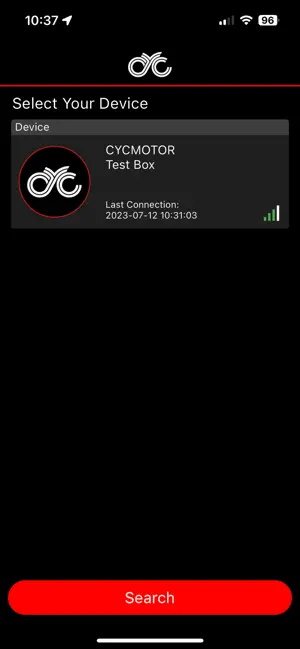
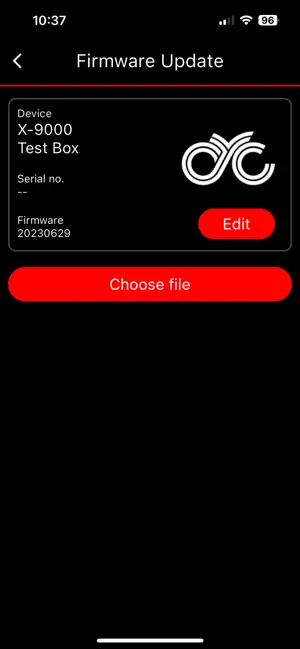
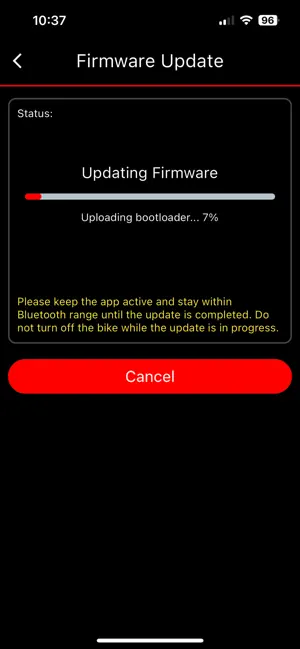
Reflash Via CYC Ride Control App
Please follow the steps below to reflash your firmware:
- Download the Photon Gen 2 firmware file and save it to your phone’s internal storage.
Note that you do not need to be able to open the file. Just save it to your mobile device.
The file can be downloaded here: https://www.cycmotor-support.com/knowledge/article/864
Note that the Zip file and bin file is available for your convenience - Turn on your kit & connect to the CYC Ride Control app.
- Go to the “Firmware” section & select the “Choose file” function.
- You will need a password listed below for the update action.
Password: 32531 - Select the firmware file that you have downloaded in step 1.
- Wait for the firmware to load.
IMPORTANT:
- Wait for the file to load fully. DO NOT interrupt the process or close the app.
- Please refrain from sharing this password unless needed. Incorrectly changing settings that require this password may result in issues/ damages that will not be warranted. Always contact CYC or an authorized distributor to ensure you are changing the correct settings if needed.
Reflash Via PC
Getting Started
What’s needed:
- X-Series Controller Programming Wire
- ST-LINK Utility Software
- Controller Firmware File
Install Software and Files
Install the software and files needed to your PC via the Google Drive link below: https://drive.google.com/drive/folders/1cO2nXipgDp57JteDYXAHEp1LNTmkGJmm?usp=sharing
X6P-181-OQC-240717-PHN.bin = Photon
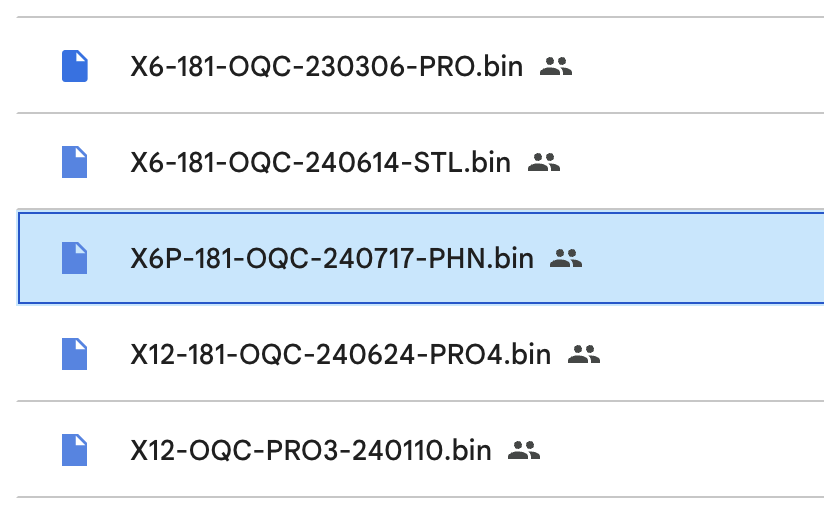
Once downloaded, double-click on the .exe file to install the ST-LINK Utility software. Follow the prompts accordingly to install the application successfully.

Connect to your PC

Plug in the ST-LINK V2 USB ADAPTER into your PC. Then, connect the controller with the battery, and display. Afterwards, plug the 7-pin peripheral harness into the controller and turn on the controller with the display.

Open the ST-LINK Utility software on your computer. Press the below-indicated button to connect and follow the prompts to upload the firmware.
 The
The
Download dialog will pop up. Click Browse to select the firmware (file extension*.bin) and leave the other options as default. Then click the Start button at the bottom of the dialog.
Once the bar has loaded completely, it has finished loading and the controller is now loaded with the new firmware.
“Verification…OK” will be shown once the firmware update is completed.
Unplug the 7-pin peripheral harness to disconnect and complete the procedure.
 IMPORTANT – PLEASE CHECK YOUR APP AND PERIPHERALS ERROR FIX
If you see this message while the controller is on, and the e-bike display shows “Please check your app and peripherals”, and you’ve ensured that your 7-pin programmer harness is correctly plugged into the controller and PC, this indicates that the controller is bricked.
Reattempt the process from the start.
If the second reflash attempt does not fix the errors, don't hesitate to get in touch with CYC or an authorized reseller to arrange a replacement.
Photon Firmware Database
Current Default Firmware
Latest Photon Gen 2 Firmware: 250901V04